To create your CPA QualityPro account, you'll have to verify your email address and setup multi-factor authentication (MFA) through an authenticator app.
Step 1: Ask your IT team to add: no-reply@verificationemail.com and @cpaqualitypro.com email addresses as approved senders. This will make sure you and your team get the system-generated emails required to verify your email addresses and create accounts.
Then visit https://app.cpaqualitypro.com to create your Administrator account.
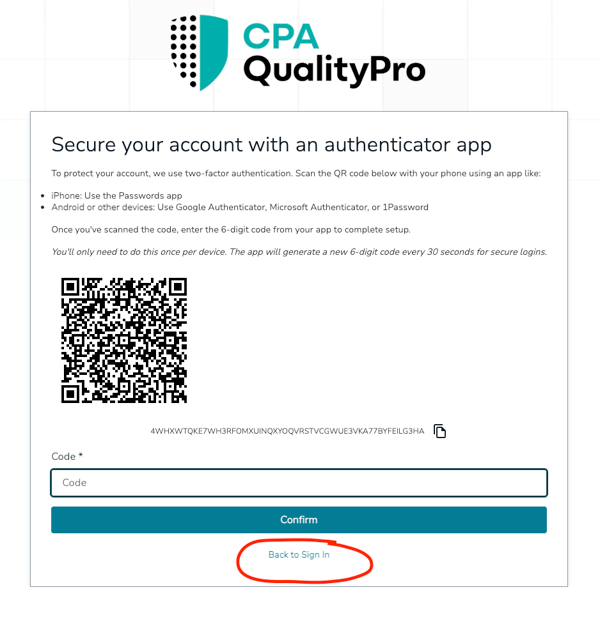
Step 2: After your email address is verified, you’ll be presented with a QR code to scan and create your multi-factor authentication (MFA) code. Here are a few of the most common authenticator apps and instructions for creating a new account code.
| Configure common authenticator apps: | Microsoft Authenticator | Google Authenticator | Apple Passwords |
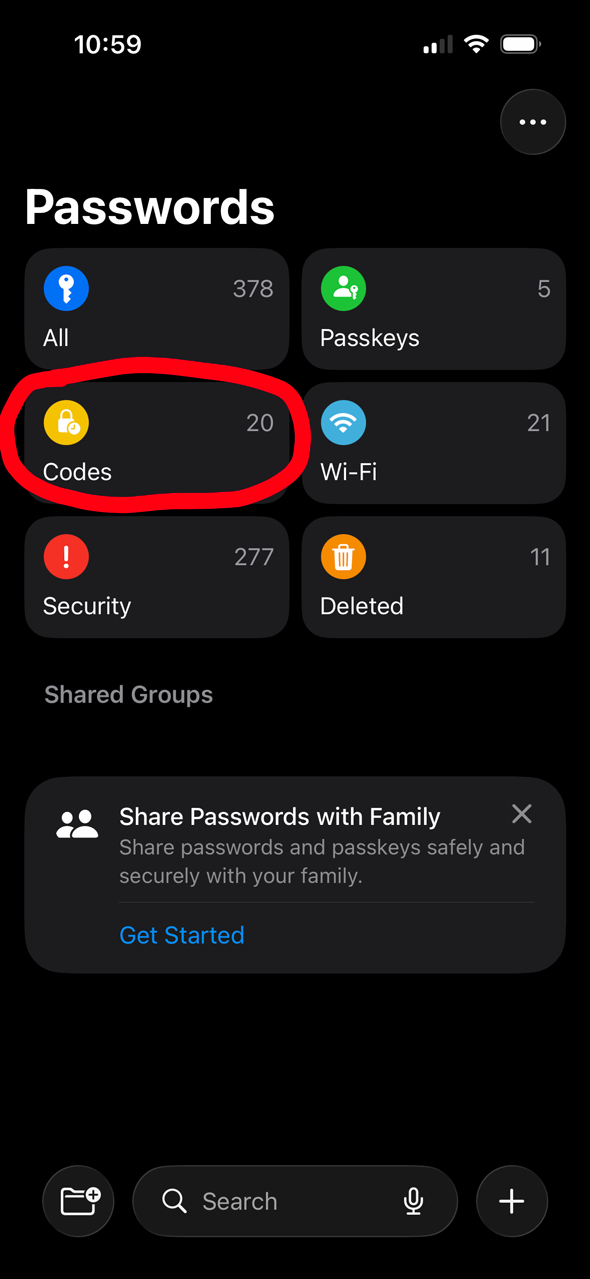
Note: Once you've reached the screen to scan the QR code, you'll need to scan and generate your MFA code right away, before your login session times out. If for any reason you are delayed in generating your MFA code, you can click "Back to Sign In" at the bottom of the screen to start a new login session.
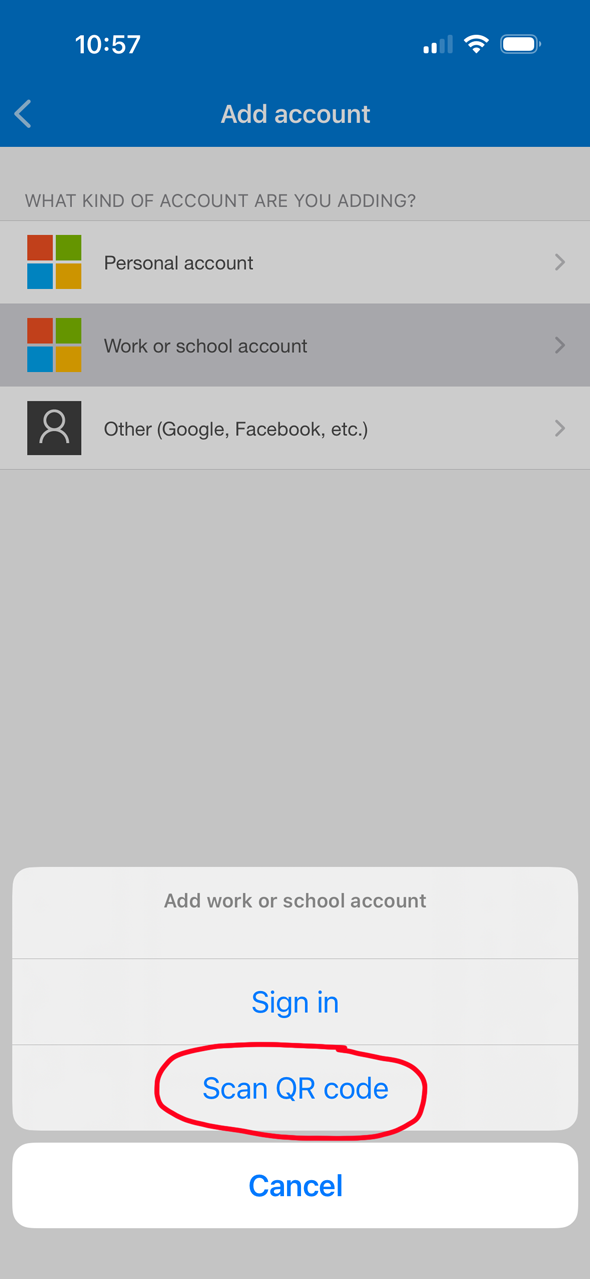
Microsoft Authenticator App:
| Open the Authenticator App | 
|
|
|
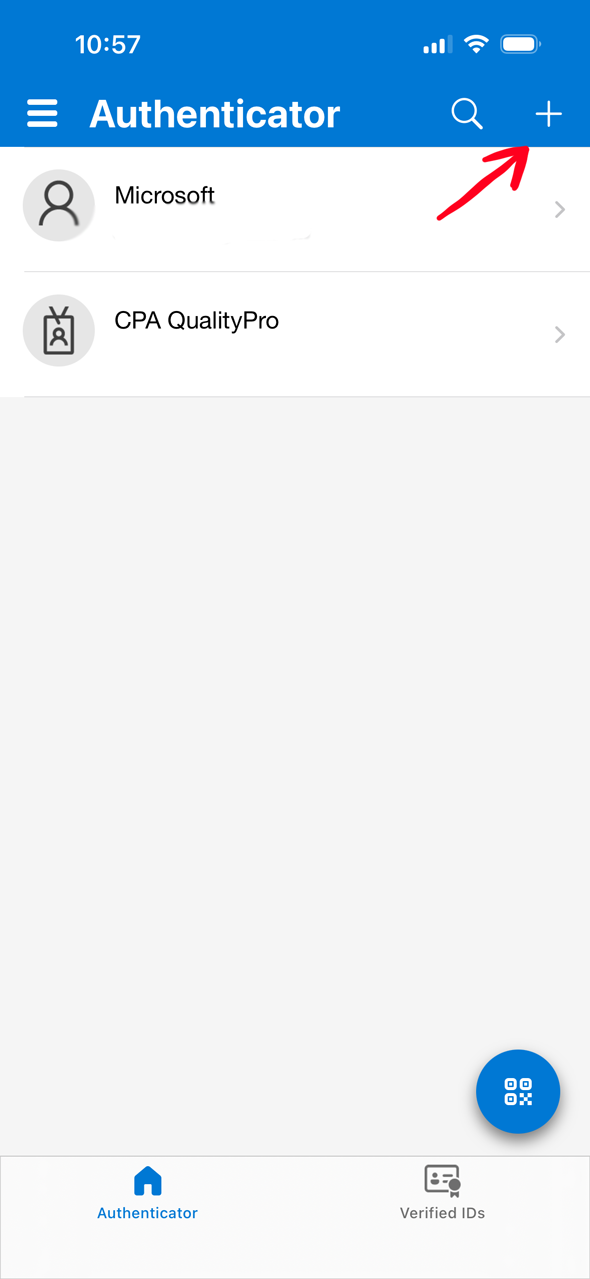
Click the "+" icon to add |
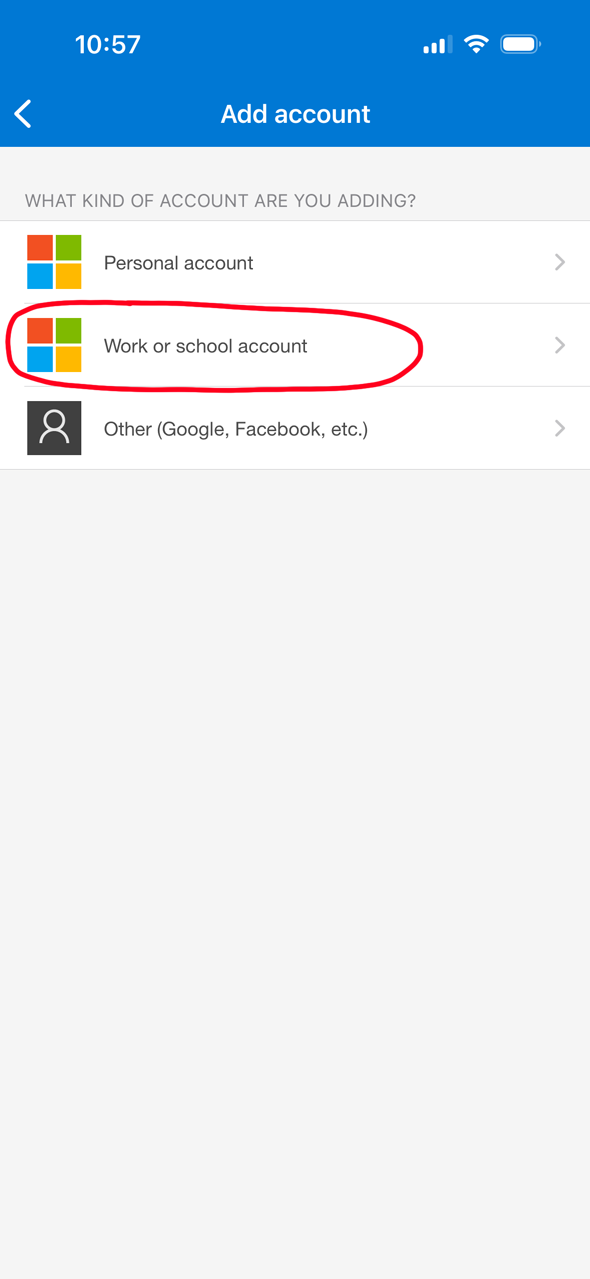
Select the account type |
Select "Scan QR code" |
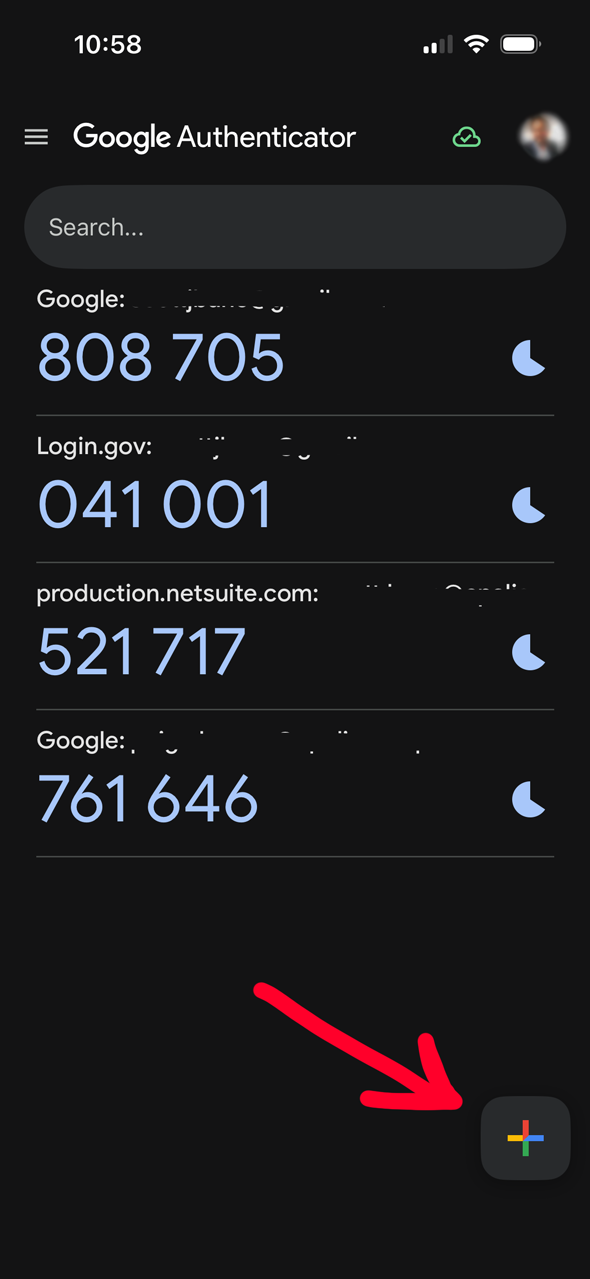
Google Authenticator App:
| Open the Authenticator App | 
|
|
Click the "+" icon to add |
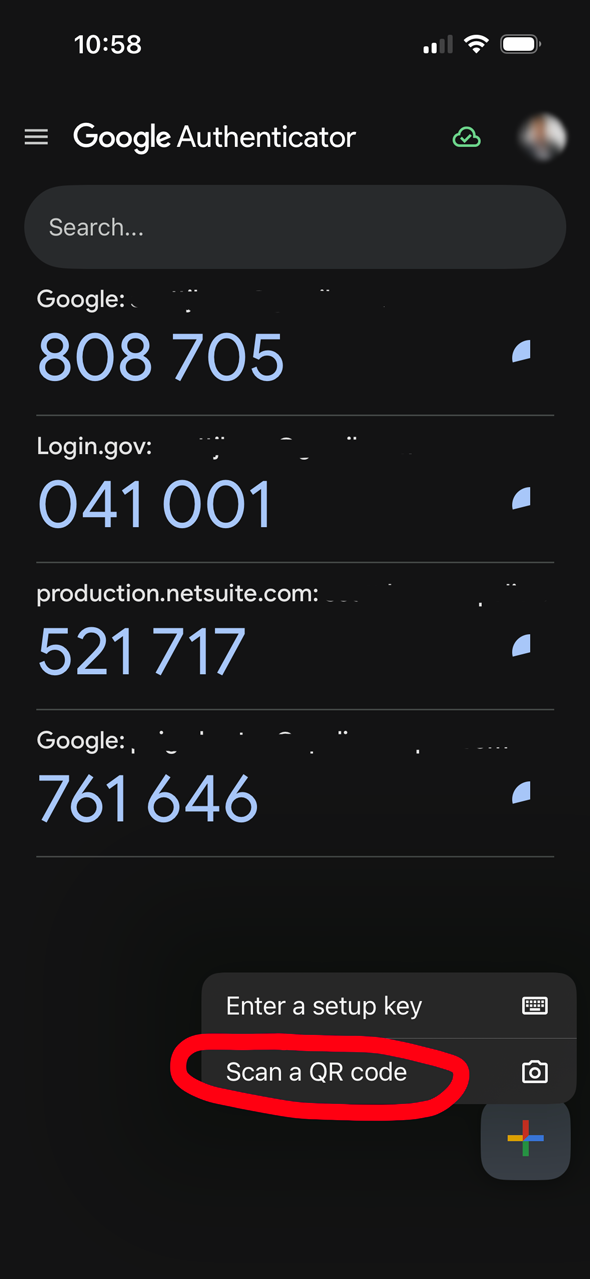
Select "Scan a QR code" |
Apple Passwords App:
| Open the Passwords App | 
|
|
|
Click the "Codes" widget |
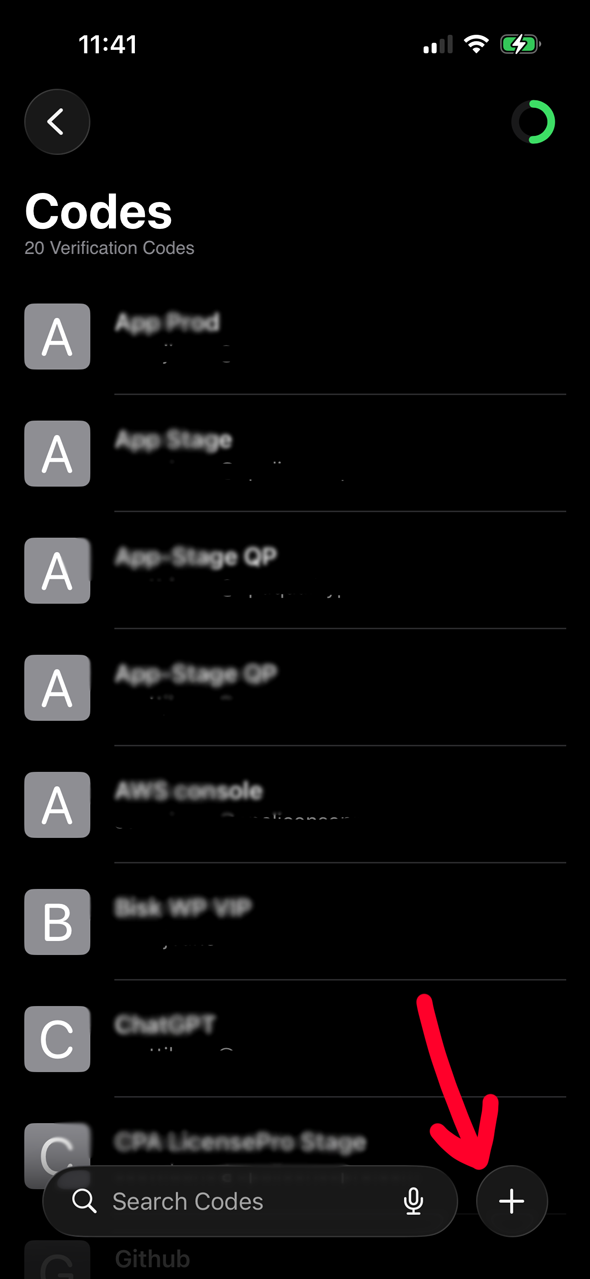
Click the "+" icon to add new |
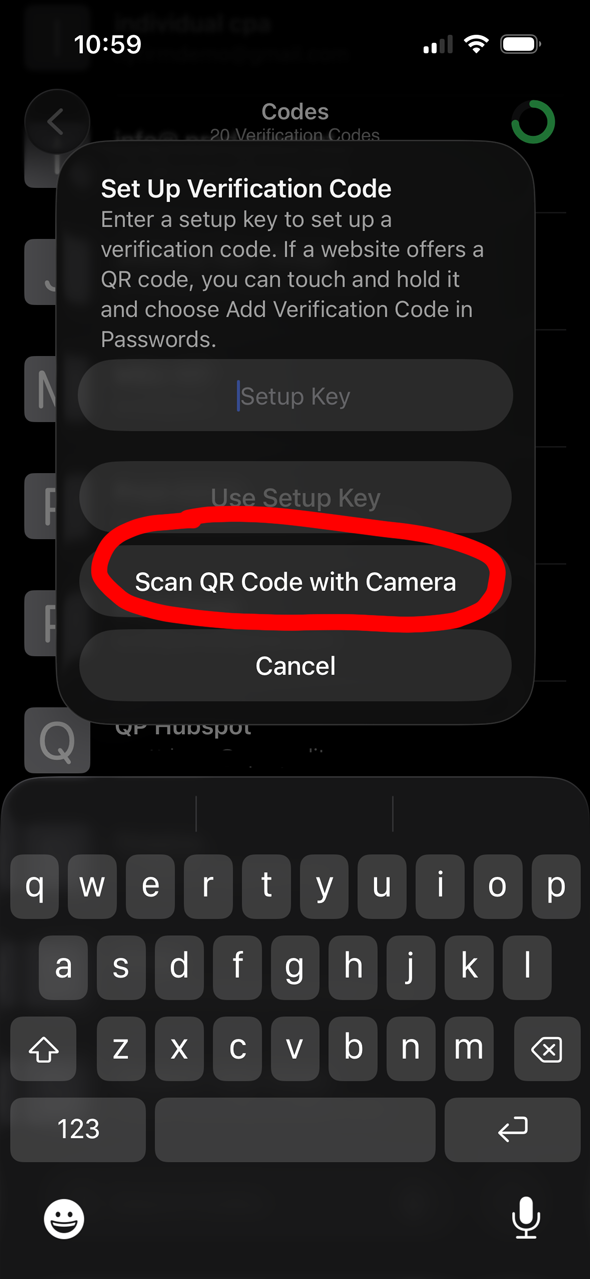
Select "Scan QR code with Camera" |